
Snap · Windows · 2 min read
Check stock and spot items running low
Start with accurate opening quantities. Then use stock records alongside regular physical counts.
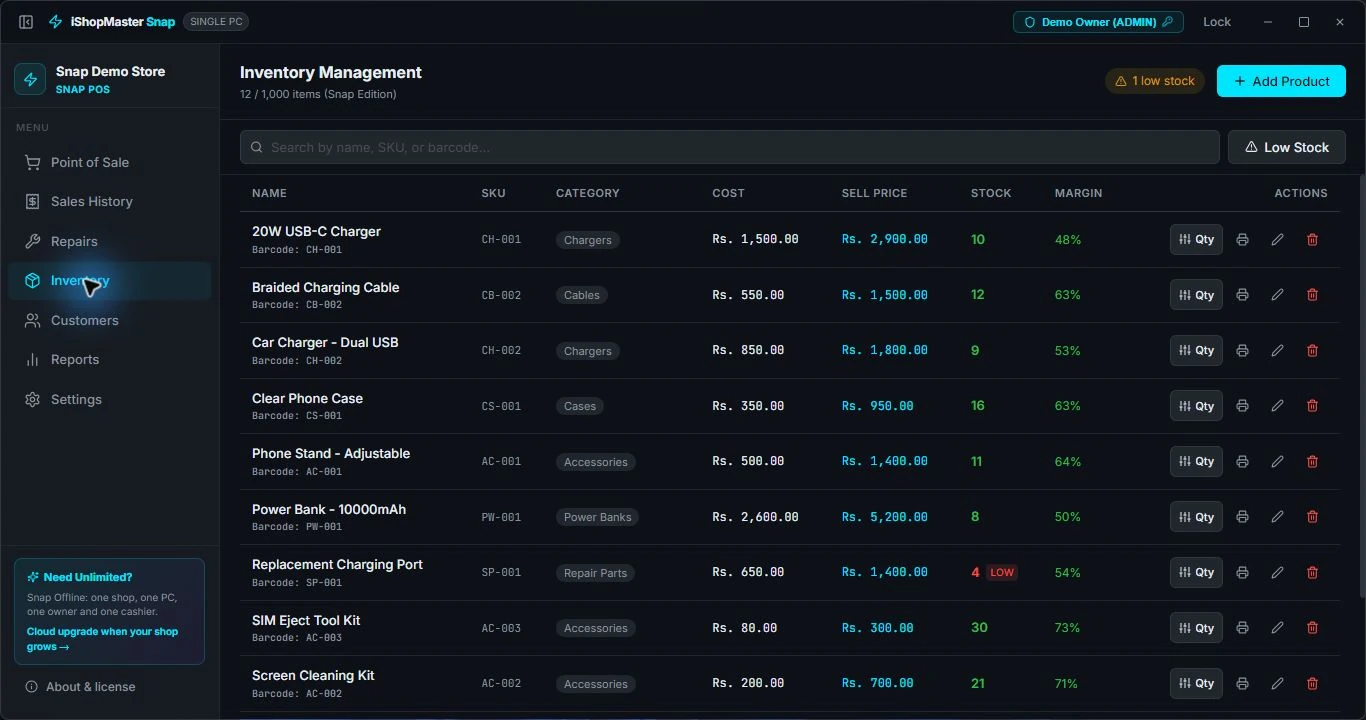
01 / Review the catalogue
Open Inventory. Use a clear product name and a unique SKU or barcode so similar cables, chargers and cases are easy to distinguish.
02 / Check prices and quantities
The list shows cost, sell price, stock and margin. Review these values after adding new stock or changing a price.
03 / Find low-stock products
Use the Low Stock filter to focus on items that need attention. Check physical stock before placing a supplier order.
04 / Check a completed sale
Our demo begins with 24 screen protectors and 18 cables. After selling one of each, Inventory shows 23 and 17.