
Snap · Windows · 3 min read
Make your first sale in Snap
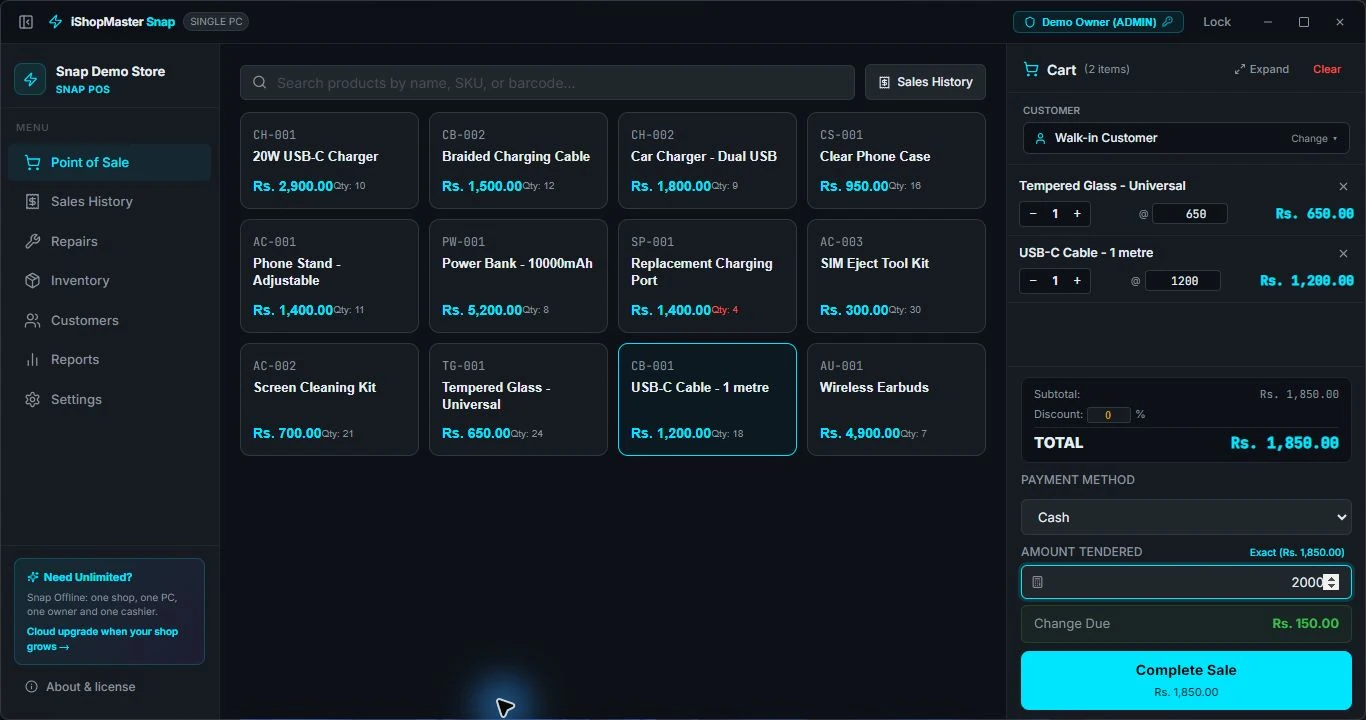
Use sample products while learning. This walkthrough follows the actual checkout shown in our Snap demo.
01 / Prepare your products
Open Inventory and add your products with a name, SKU, selling price and opening quantity. Check those values before using real shop stock.
02 / Build the bill
Open Point of Sale. Select a product or find it with the search box. In our example, a screen protector is Rs. 650 and a USB-C cable is Rs. 1,200.
03 / Review before completing
Check the items, quantities, customer and total. Select Cash and enter the amount tendered. For a Rs. 1,850 bill paid with Rs. 2,000, the change is Rs. 150.
04 / Complete and check the receipt
Choose Complete Sale when the details are correct. Review the receipt preview. Test your printer separately before using it at the counter.
05 / Find the record again
Open Sales History to locate the sale and preview its receipt. Open Inventory to check the remaining quantities.